1/3
The price of the leading password managers.
Solid encryption and a well-made vault shouldn’t cost like a second phone bill. Ultravault costs about a third of what the leading password managers charge.
256-bit encryption. Every device.
The whole family. One third of the price.
Room for everything sensitive, behind one door.
The protection you’d expect from the big names, for everyone you share a roof with, without the price tag that usually comes with it.
Solid encryption and a well-made vault shouldn’t cost like a second phone bill. Ultravault costs about a third of what the leading password managers charge.
The same standard trusted by banks and governments, built on Apple’s CryptoKit. Everything is encrypted on your device before it touches the disk.
Mac, iPhone, and iPad, plus everyone in your household, on one plan. No per-seat pricing and no surprise charges when the family grows.
Pricing comparison based on published individual and family plans of leading password managers. Final pricing announced at launch.
The same vault, the same lock, and the same encryption on every Apple device you own. Unlock it at your desk, on the train, or on the couch. Sync it through your own iCloud, or keep each copy strictly on-device.
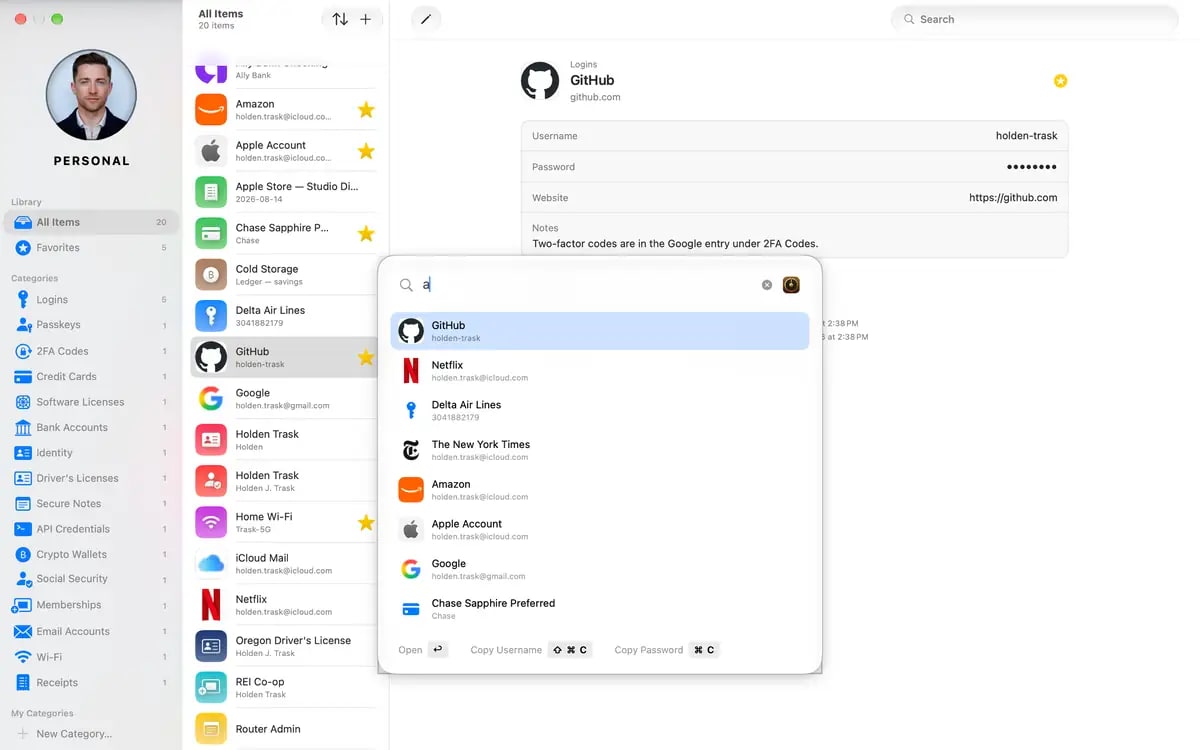
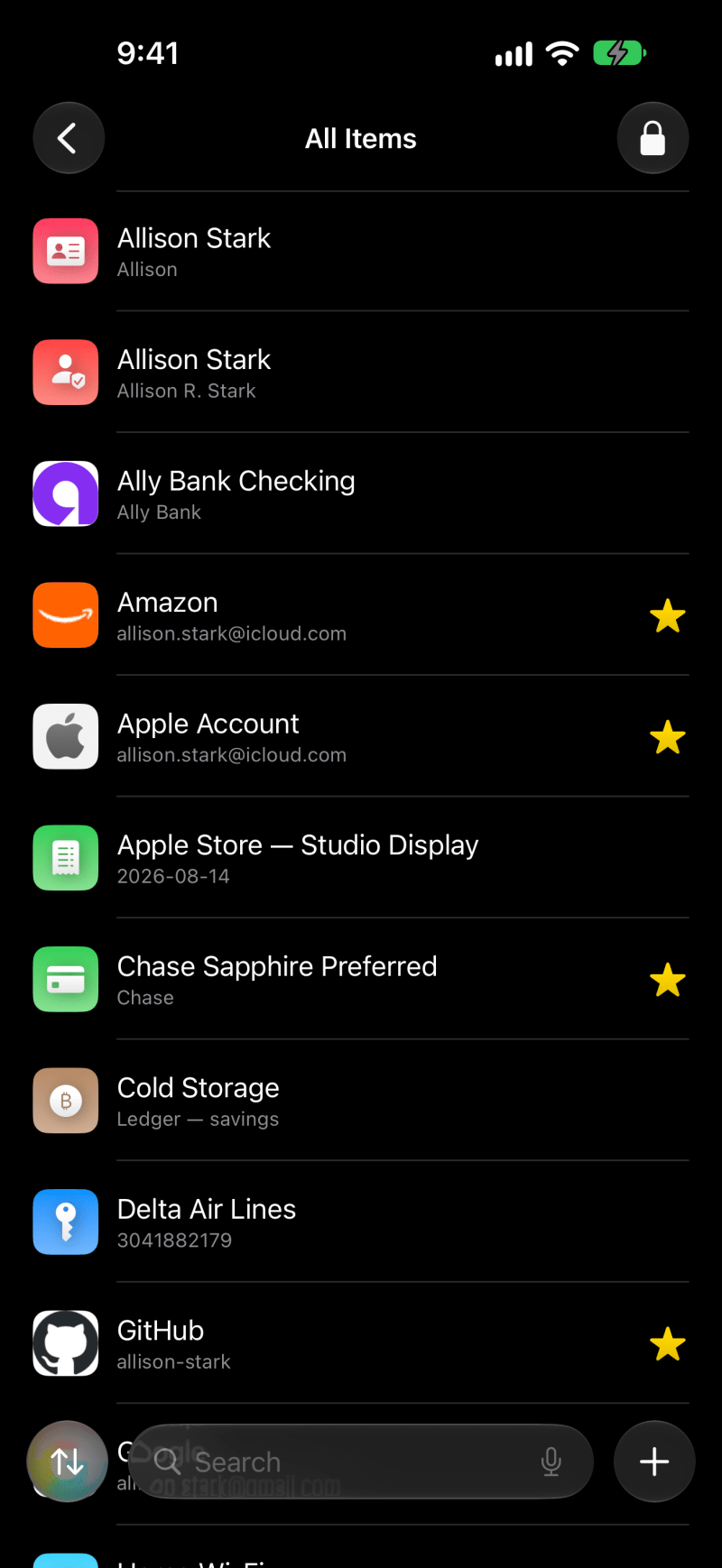
A native Mac app with a real window, real keyboard shortcuts, and browser extensions for Chrome, Brave, Firefox, and Orion.
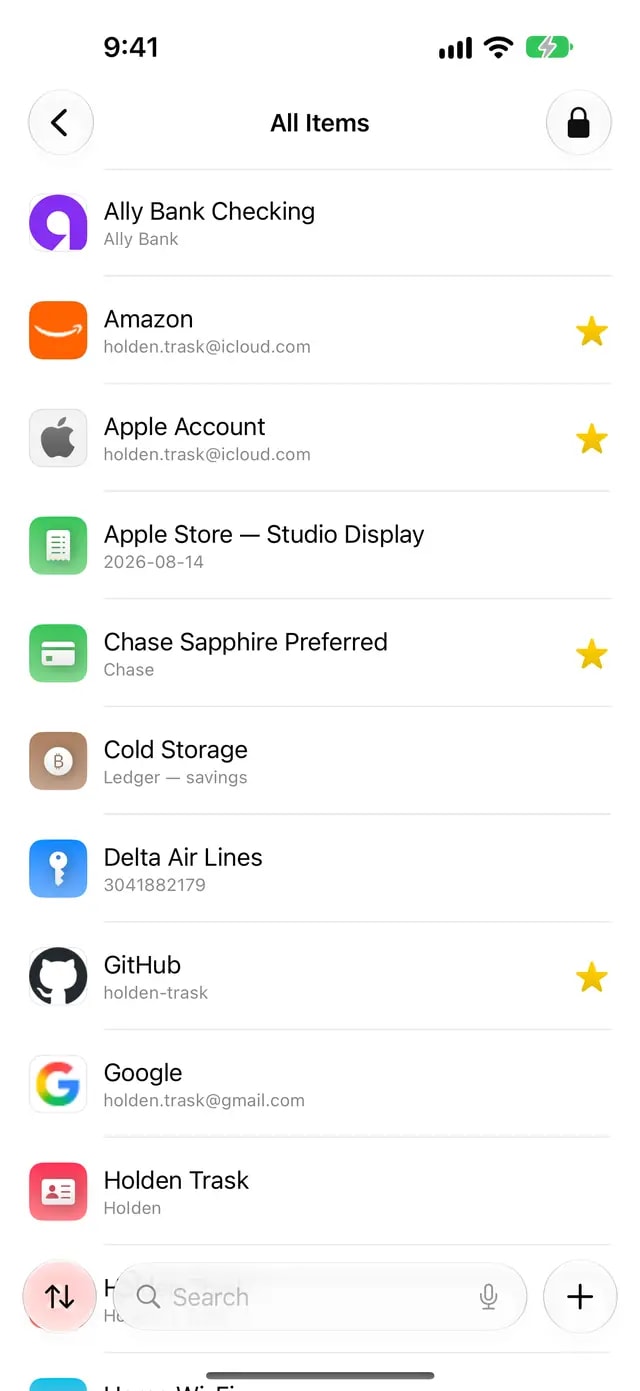
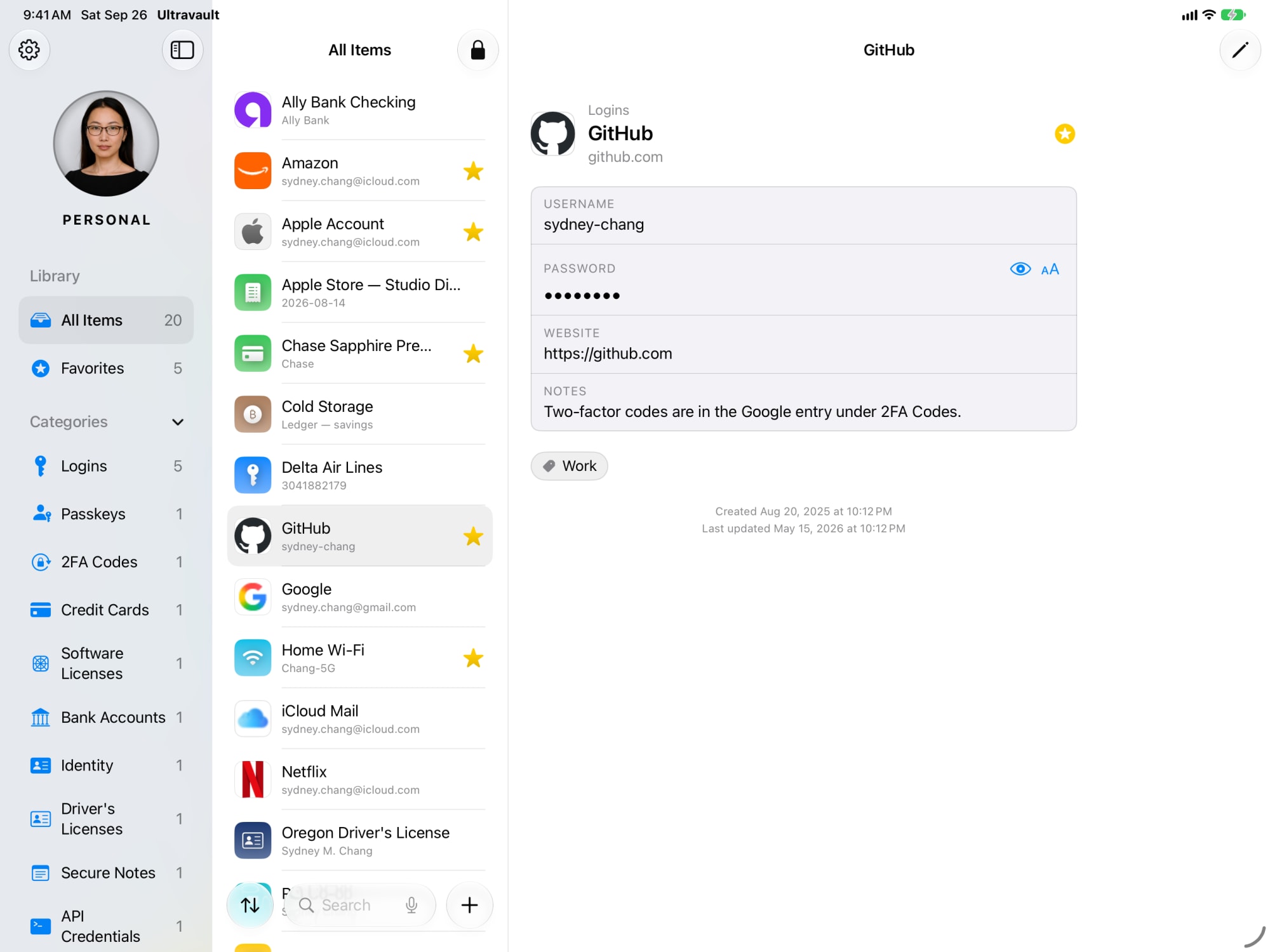
The whole vault in your pocket. Tap to unlock, find the login, copy the code, and lock it back up before the light turns green.
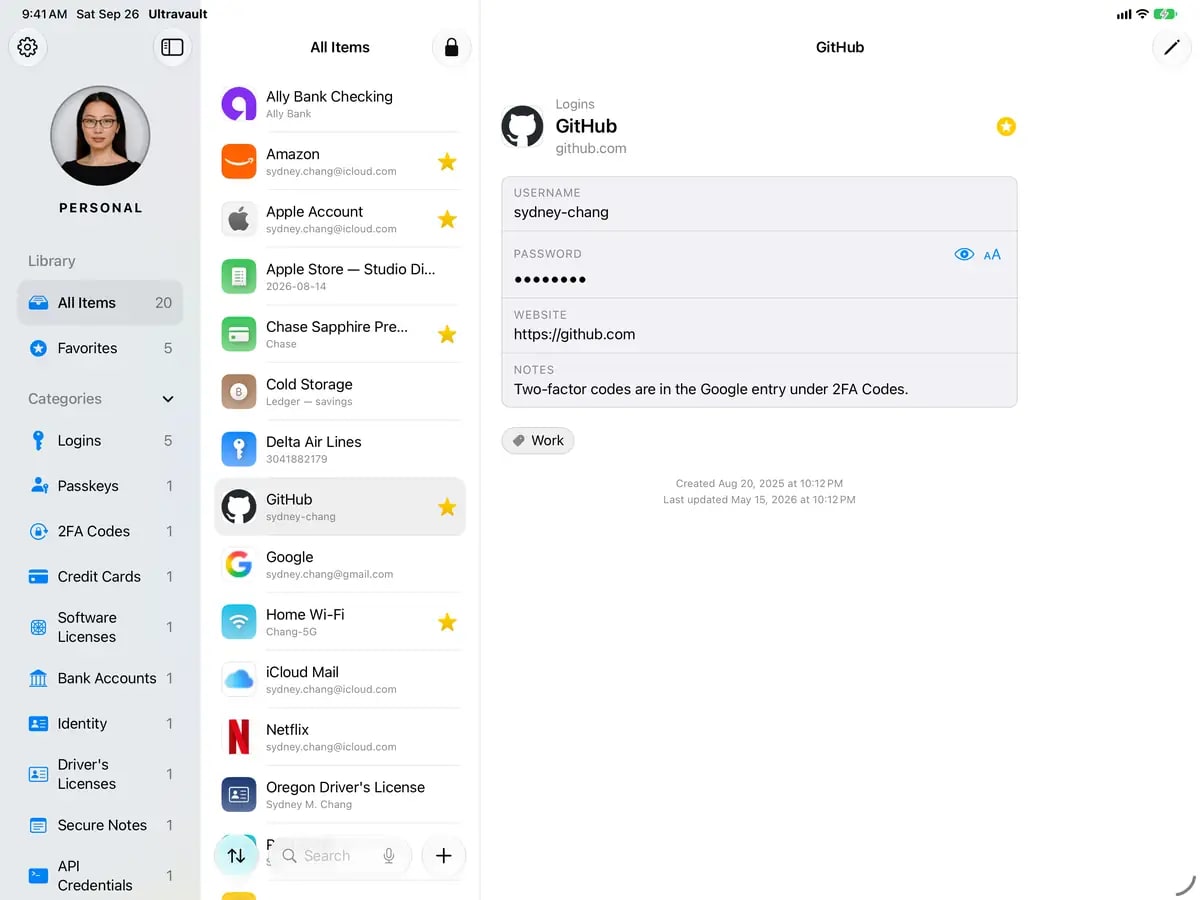
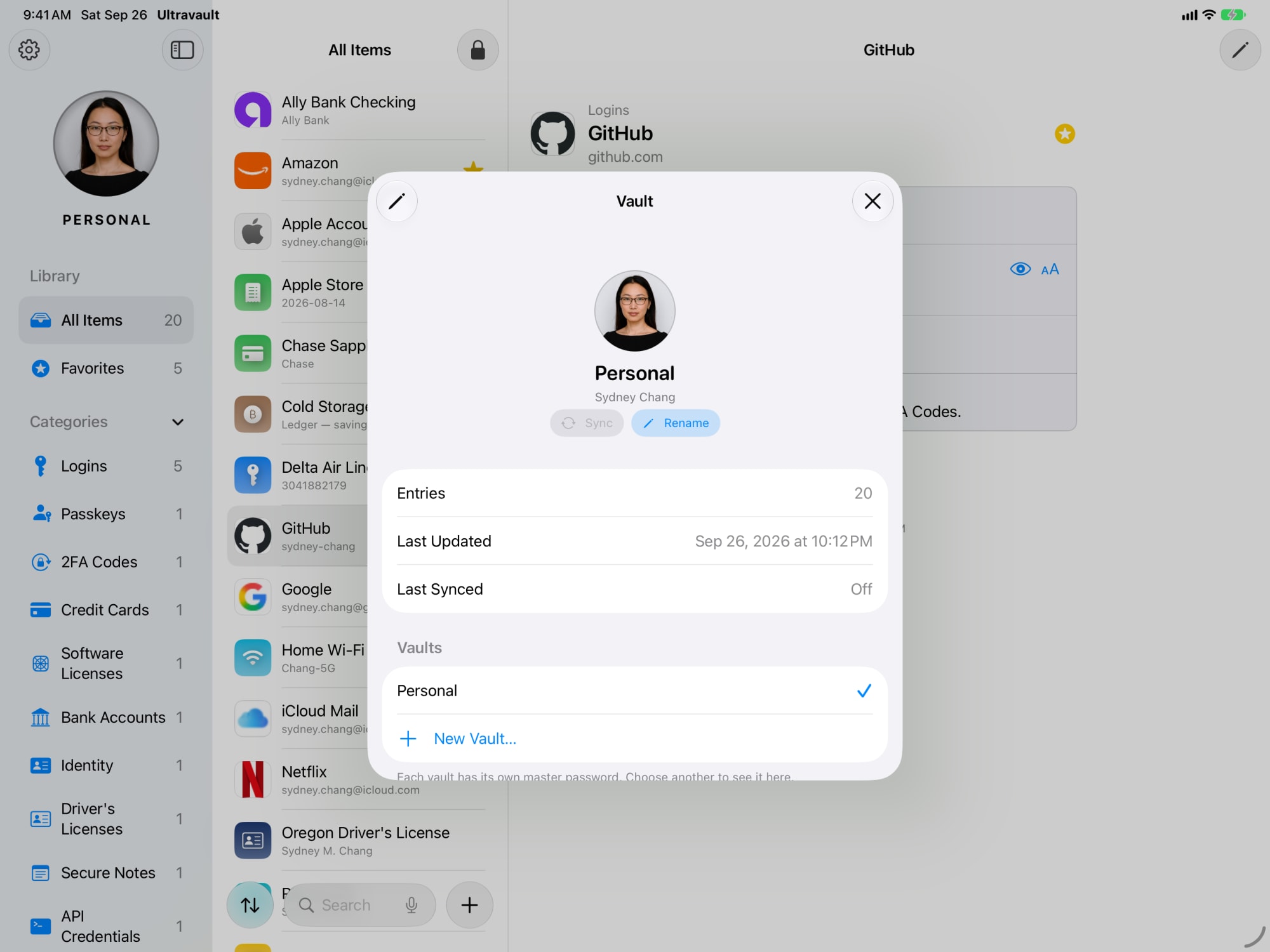
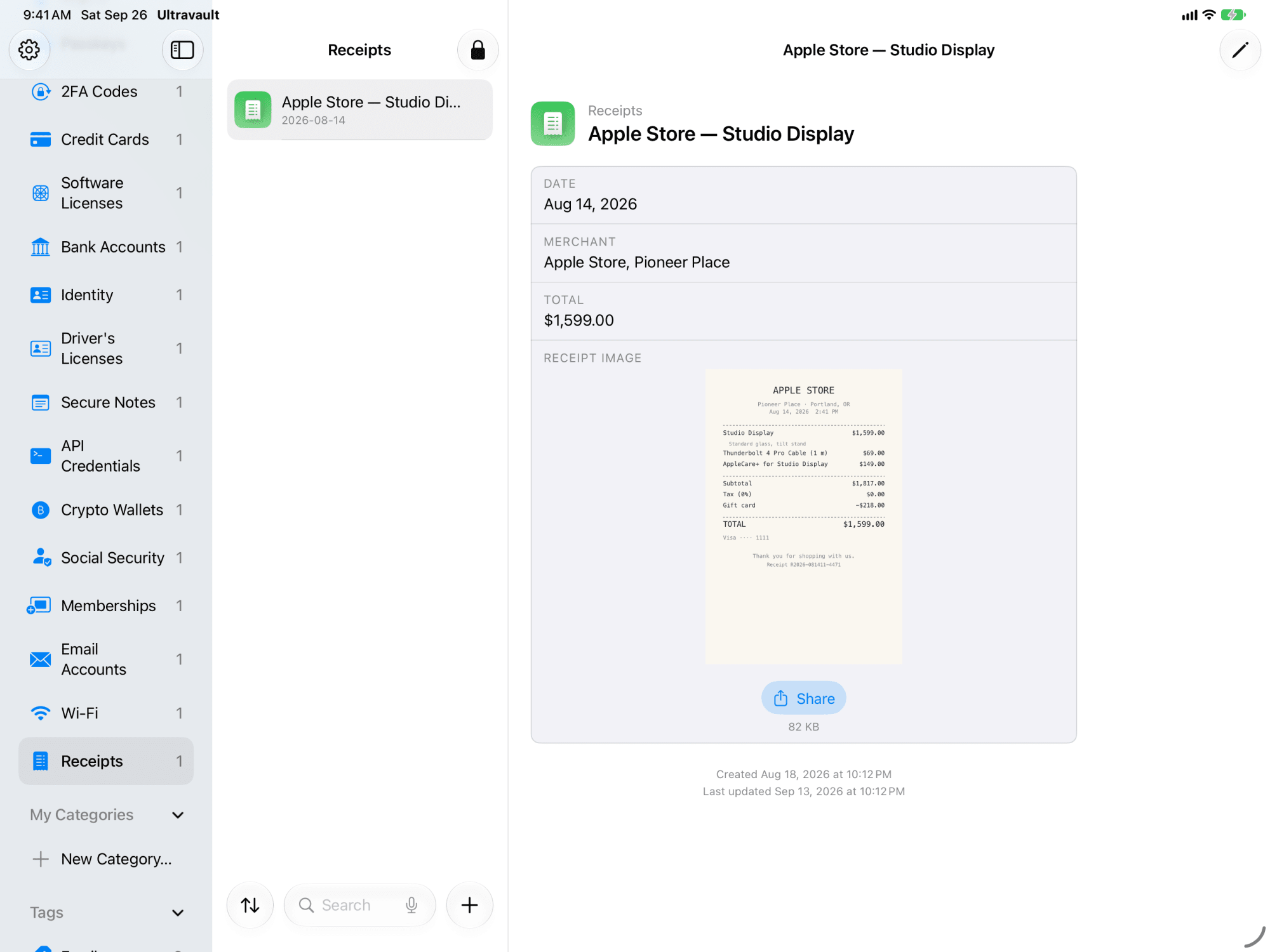
Room to breathe. Sidebar, categories, and details side by side, so the receipt and the serial number are both on screen at once.
Your passwords are in one app, the receipts are in a folder, and the license key is in an email from 2019. Ultravault gives all of it one door, and one lock that you hold the key to.
Logins, passkeys, and 2FA codes next to credit cards, bank accounts, software licenses, identity, secure notes, and receipts. If it’s the kind of thing you’d rather not lose, it has a category.
Ultravault opens closed, on every device. Unlock it, do what you came to do, and the door shuts behind you.
Encrypted, with the key in your hands and not ours. There is no Pixegen server holding a copy, because there is no Pixegen server.
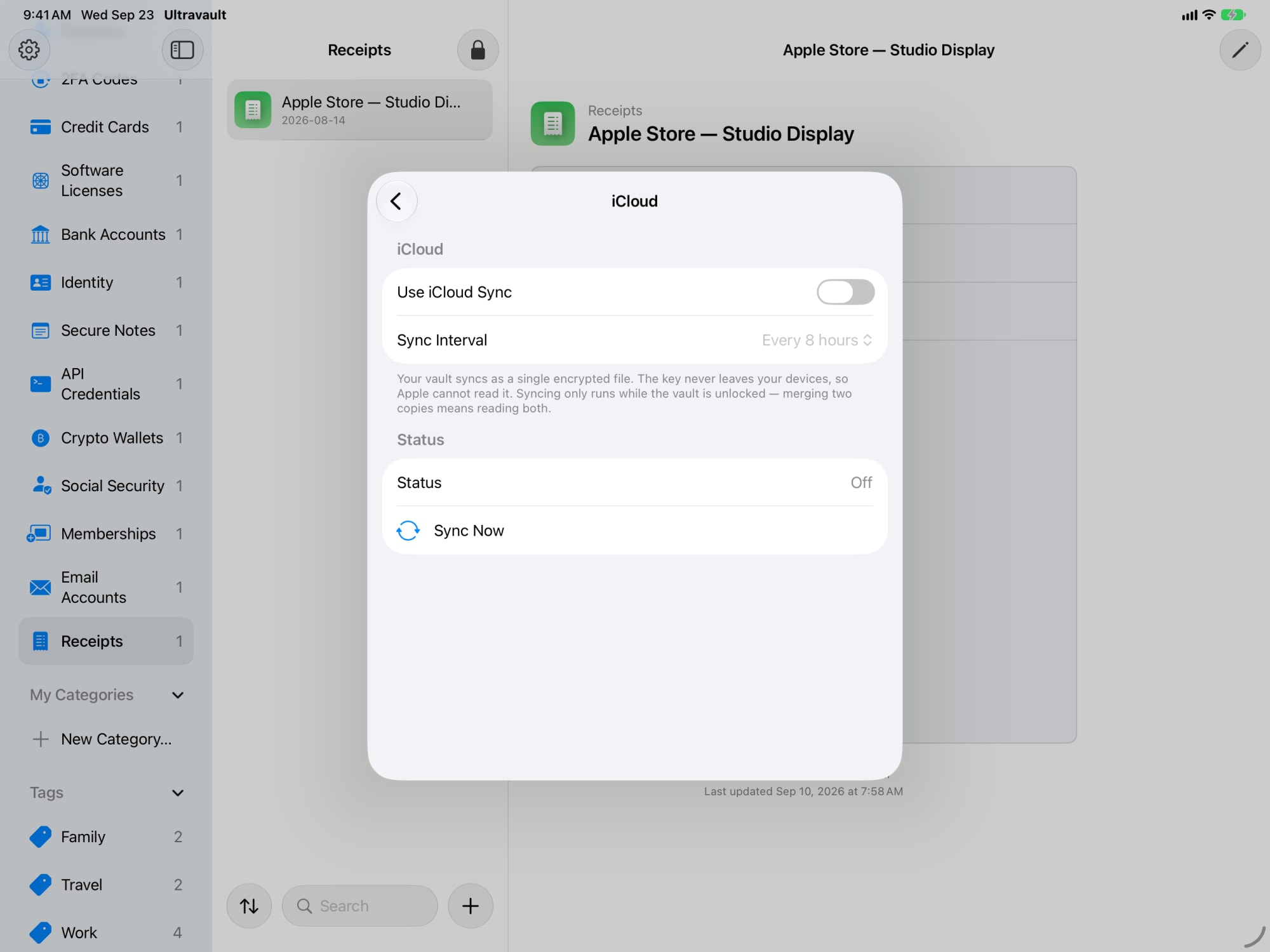
Flip one switch and your vault syncs through your own private iCloud account. Leave it off and nothing ever leaves the device.
No sign-up, no analytics SDK, no newsletter. The app has nothing to report and no one to report it to.
Built for Mac, iPhone, and iPad with Apple’s own frameworks. Quick to unlock, quick to find what you need, and quiet the rest of the time. No web wrapper pretending to be an app.
One plan covers everyone in your household, each with their own vault behind their own lock.
A vault should be simple to open for you and impossible for everyone else, whichever device is in your hand. That’s the whole design brief.
Ultravault starts locked, every time, on Mac, iPhone, and iPad. Click, tap, or press a key, unlock, and your things are where you left them. Close it, and the door shuts again.
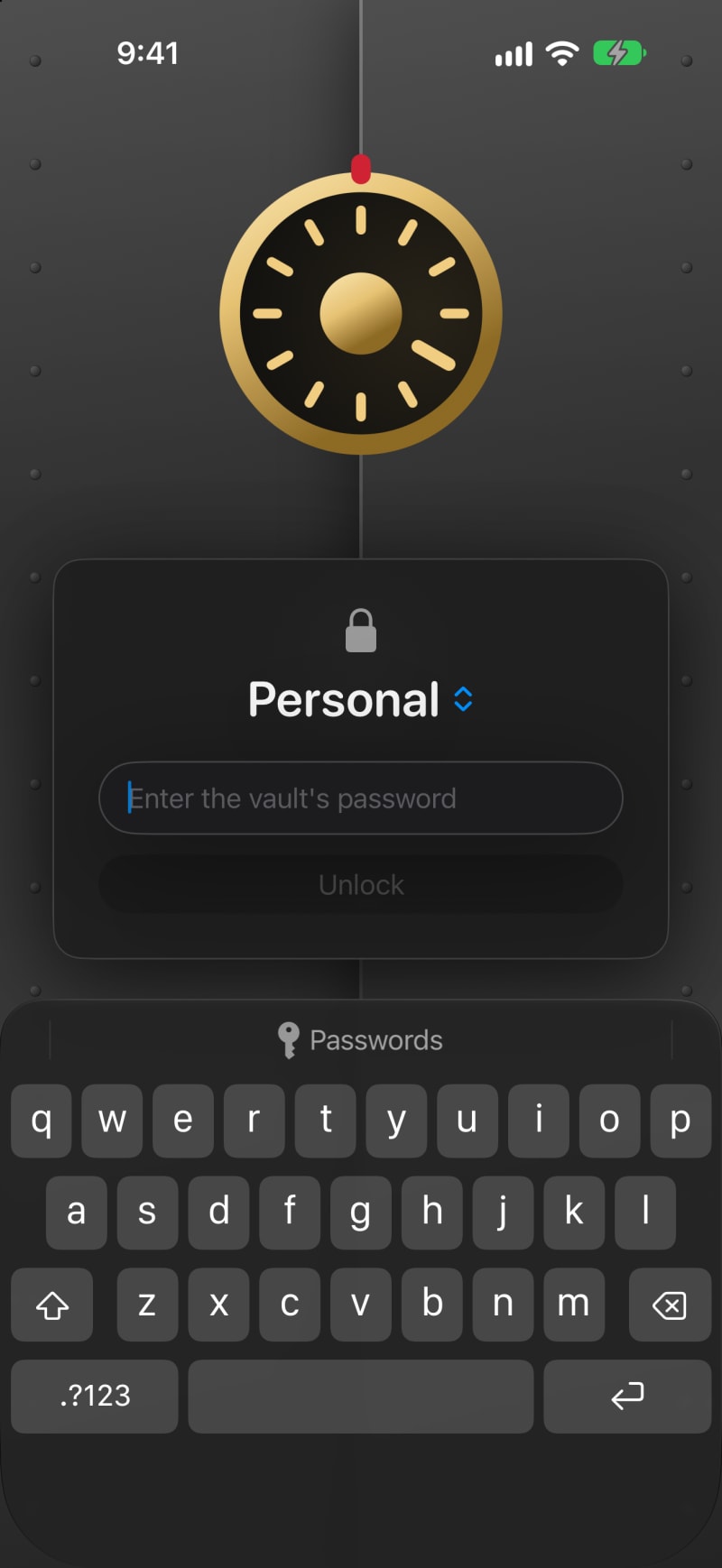
Moving from 1Password or another password manager? Import a .1pux file from 1Password or a CSV export from almost anything else, and Ultravault brings it all in once your vault is ready.
Your data is never locked in, either. Export whenever you like, to CSV or a 1Password-ready CSV, so leaving is as easy as arriving.
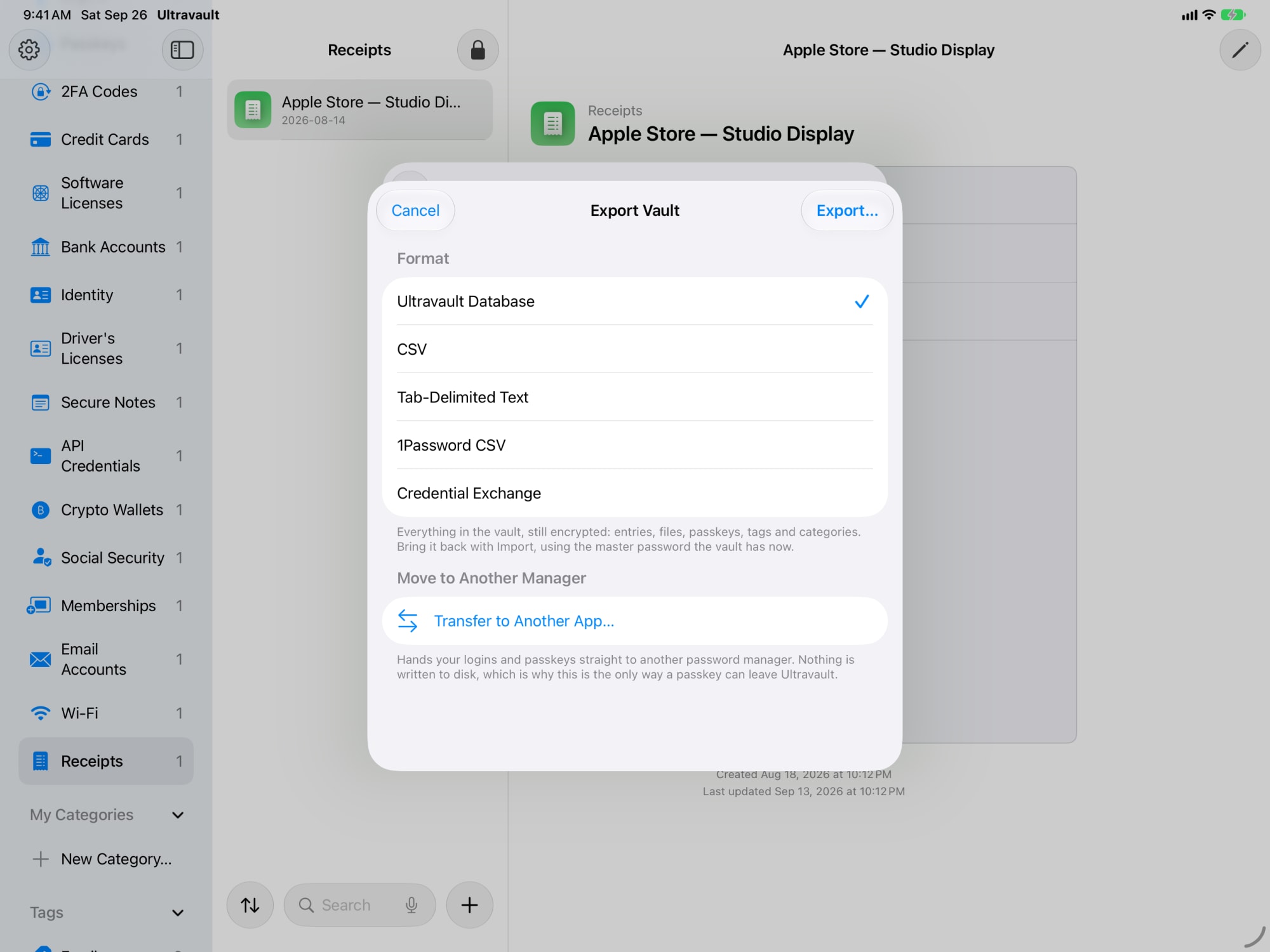
By default, the vault lives on the device you created it on and nowhere else. Want it on your iPhone, iPad, and Mac together? Turn on iCloud sync and Ultravault stores the vault in your private iCloud account, under your Apple Account, on Apple’s terms.
We never see it either way. The privacy policy spells out exactly what iCloud does and doesn’t mean.
A vault shouldn’t only hold passwords. Keep the receipt for the thing you might return, the software license, the serial number, and the note you don’t want sitting in Notes. Snap it on your iPhone, read it on your Mac.
Ultravault doesn’t roll its own crypto. It’s built on CryptoKit, the cryptography framework Apple builds on across macOS, iOS, and iPadOS. Every item is encrypted on your device with 256-bit AES-GCM before it touches the disk. The key is derived on your device and never leaves it. There’s nothing for us to hold, so there’s nothing for us to lose.
Authenticated encryption. Tampered data fails to open instead of opening wrong.
Apple’s own cryptography library, on Mac, iPhone, and iPad alike. Not a cipher somebody wrote on a weekend.
Derived on your device from your credential. Encrypted before it ever reaches iCloud. Pixegen never has a copy.
No account system, no analytics SDK, and no server that holds your vault. What’s absent matters as much as what’s present, so here it is in writing.
Ultravault for Mac, iPhone, and iPad is a couple of weeks out. We’ve been using it every day at Pixegen, and we’d like it to be finished before you do.